

• Skip to main content
  • Skip to main navigation
Baylor University Baylor University
HelpDesk+
  • About
    • New Student Resources
      • Digital Tools Presentation
  • Equipment Checkout & Spaces
    • HelpDesk+ Loan Policy
  • Software
  • Hardware
    • Technology Purchasing
      • Technology Purchasing Guidelines
      • Run Inventory Reports
      • Hardware Replacement Schedule
      • Budget Estimating Tool
      • Standard Hardware & Categories
      • Non-Standard Technology Purchase
      • Mobile Devices and Data Plans
      • Technology Purchasing Lookup
      • Lost Equipment Report
    • Installation
      • Workstation Configuration Guidelines
      • Redeployment of Computer Equipment
      • Disposition of Computer Equipment
      • Disposition and Certification Guidelines
    • Repair
    • Printing
  • Network & Phone
    • AirBear Wireless Network
      • Mac OS Setup Instructions
      • Windows Setup Instructions
      • Apple iOS Setup Instructions
      • Android Setup Instructions
    • BU-GUEST: Wireless Access for Campus Visitors
    • Eduroam
    • Microsoft Teams Calls
    • Campus Cable Television
    • Move Packet
  • Research Technology
  • System Status
Baylor BU Home
Enable Zoom in Canvas

Enable Zoom in Canvas

 

To enable Zoom within your Canvas course, first sign into your Zoom account and login to Canvas.
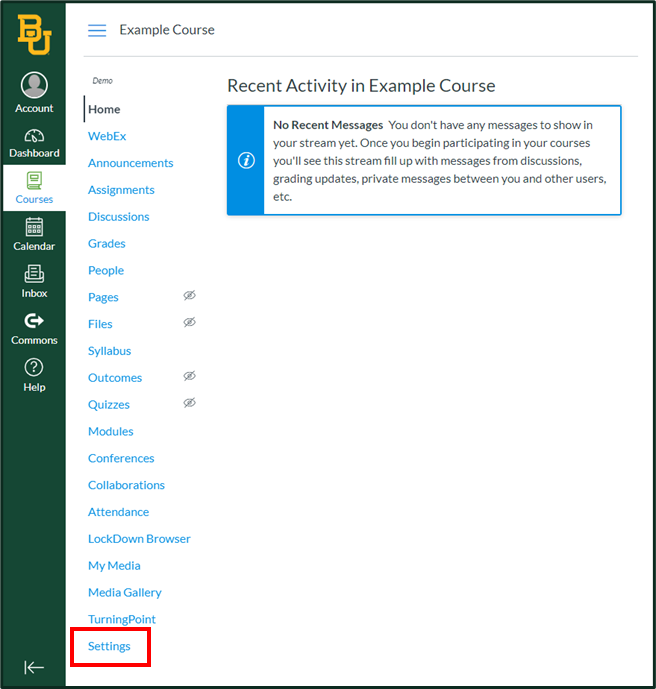
Select the course you want to use to Zoom meetings with and click Settings on the left.

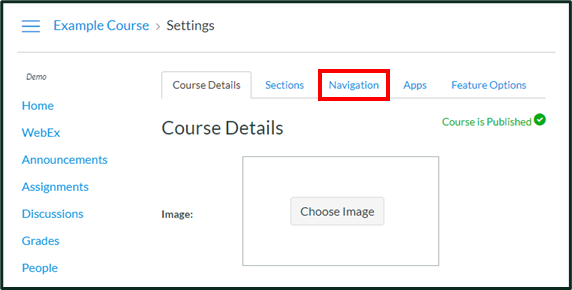
Then click on the Navigation tab at the top.

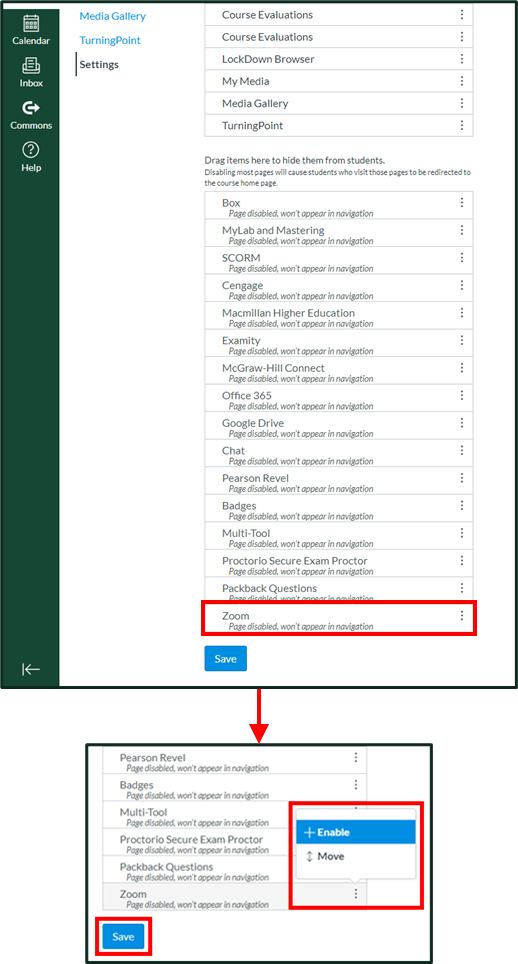
Scroll down to find Zoom in the list - it will likely be at or near the bottom. Click on the three dots to the right and select Enable, then click the Save button at the bottom of the page.

Zoom will move to the top list and also now appear on the left of the page. You can click and drag any items in the top list to adjust the order in which they will appear on the left. Once you have made any desired changes, scroll down and click Save to finalize the list order.
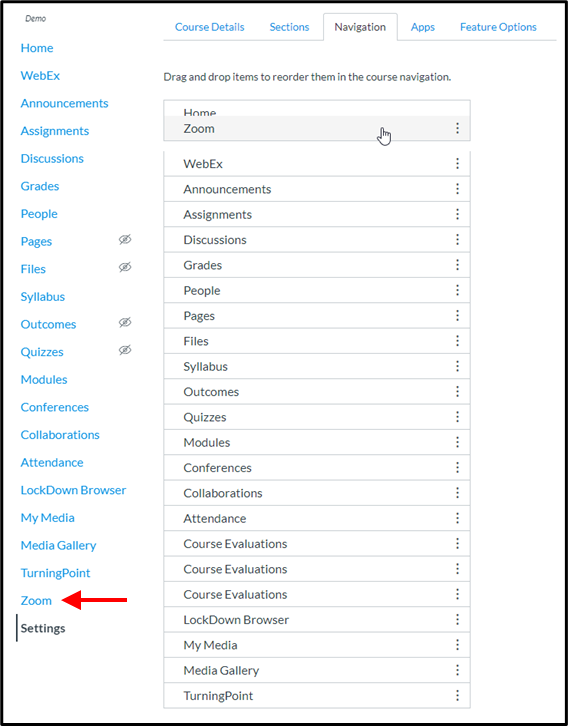

You can now access the Zoom dashboard by clicking on the Zoom link on the left.
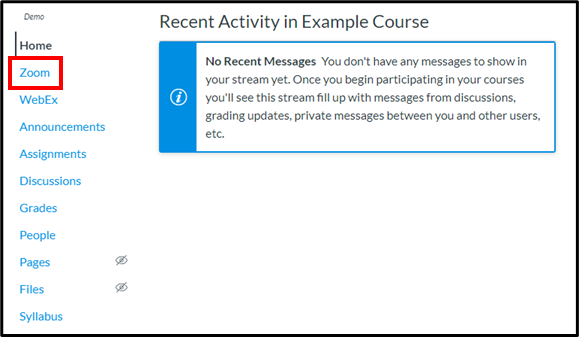

The first time you access the Zoom dashboard, you may be prompted to Authorize Zoom in Canvas - click the "Authorize" button, and you will then see your dashboard.
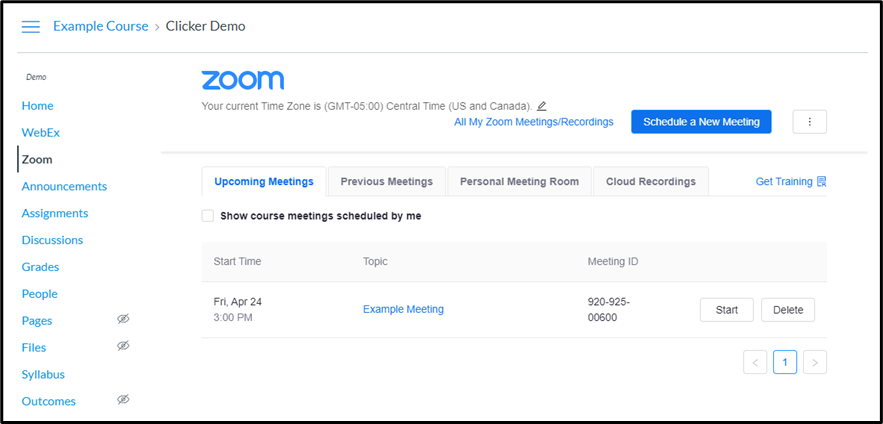

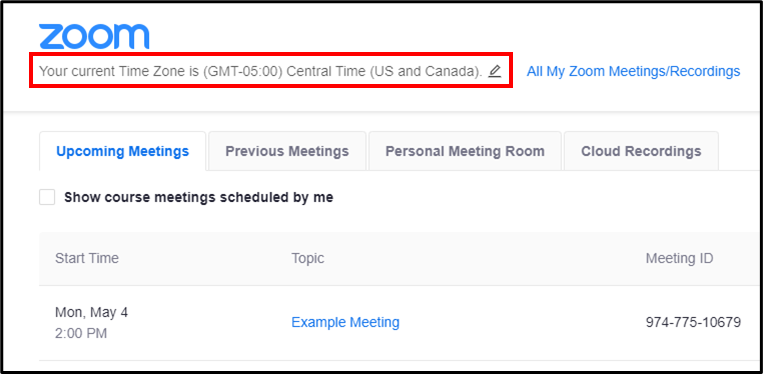
Be sure your time zone is set correctly - you can click the pencil icon to change it if required.
You are now ready to use Zoom in your course.
HelpDesk+

Moody Memorial Library (First Floor)
1312 S. 3rd St
Waco, TX 76798

helpdesk@baylor.edu
(254) 710-4357 (HELP)
Hours
Self Service
Reset Password
Submit Support Request
Baylor BU Home
  • About
    Back
    • New Student Resources
      Back
      • Digital Tools Presentation
  • Equipment Checkout & Spaces
    Back
    • HelpDesk+ Loan Policy
  • Software
  • Hardware
    Back
    • Technology Purchasing
      Back
      • Technology Purchasing Guidelines
      • Run Inventory Reports
      • Hardware Replacement Schedule
      • Budget Estimating Tool
      • Standard Hardware & Categories
      • Non-Standard Technology Purchase
      • Mobile Devices and Data Plans
      • Technology Purchasing Lookup
      • Lost Equipment Report
    • Installation
      Back
      • Workstation Configuration Guidelines
      • Redeployment of Computer Equipment
      • Disposition of Computer Equipment
      • Disposition and Certification Guidelines
    • Repair
    • Printing
  • Network & Phone
    Back
    • AirBear Wireless Network
      Back
      • Mac OS Setup Instructions
      • Windows Setup Instructions
      • Apple iOS Setup Instructions
      • Android Setup Instructions
    • BU-GUEST: Wireless Access for Campus Visitors
    • Eduroam
    • Microsoft Teams Calls
    • Campus Cable Television
    • Move Packet
  • Research Technology
  • System Status
  • General Information
  • Academics & Research
  • Administration
  • Admissions
  • Gateways for ...
  • About Baylor
  • Athletics
  • Ask Baylor
  • Bookstore
  • Calendar
  • Campus Map
  • Directory
  • Give to Baylor
  • News
  • Search
  • Social Media
  • Strategic Plan
  • College of Arts & Sciences
  • Diana R. Garland School of Social Work
  • George W. Truett Theological Seminary
  • Graduate School
  • Hankamer School of Business
  • Honors College
  • Law School
  • Louise Herrington School of Nursing
  • Moody School of Education
  • Research at Baylor University
  • Robbins College of Health and Human Sciences
  • School of Engineering & Computer Science
  • School of Music
  • University Libraries, Museums, and the Press
  • More Academics
  • Athletics
  • Compliance, Risk and Safety
  • Human Resources
  • Marketing and Communications
  • Office of General Counsel
  • Office of the President
  • Office of the Provost
  • Operations, Finance & Administration
  • Senior Administration
  • Student Life
  • University Advancement
  • Undergraduate Admissions
  • goBAYLOR
  • Graduate Admissions
  • Baylor Law School Admissions
  • Social Work Graduate Programs
  • George W. Truett Theological Seminary Admissions
  • Online Graduate Professional Education
  • Virtual Tour
  • Visit Campus
  • Alumni & Friends
  • Faculty & Staff
  • Online Graduate Professional Education
  • Parents
  • Prospective Faculty & Staff
  • Prospective Students
  • Students
  • Anonymous Reporting
  • Annual Fire Safety and Security Notice
  • Cost of Attendance
  • Digital Privacy
  • Legal Disclosures
  • Mental Health Resources
  • Notice of Non-Discrimination
  • Report It
  • Title IX
  • Web Accessibility
 
Baylor University
Copyright © Baylor® University. All rights reserved.
Baylor University • Waco, Texas 76798 • 1-800-229-5678